Everyday
AI Automation
Describe what you want built and it builds it, or wire skills together on a canvas yourself.
Everyday · On the home screen by default
What it does
- Opens on the Harness tab, where you type into a box that reads 'Describe what you want to make or automate...' and the app builds it. The code defines fourteen kinds of thing it can aim at, including Pipeline, DAG Pipeline, AI Agent, Custom Skill, MCP Server, Python Service, Mini App, macOS App, Widget, Browser Test, Full-Stack App and Unity Game.
- Shows the work in three panes: a sessions sidebar with a 'New AI Automation' button and a 'Products' section that counts finished results; the conversation in the middle; and a right-hand pane with Preview, Logs, Terminal and Files tabs. While a run is going you can type a steering message — it shows as 'Steering queued — will redirect after current step' and can be cancelled without stopping the run — or press Stop.
- Keeps web mini-app versions honest: a version chip in the preview header, a 'Version History' popover that lists each build with Open and Rollback, and an 'Iterate' button that branches a clean new numbered version so the original stays untouched.
- Has a Pipelines tab with three sub-tabs — Canvas, Recipes and Community Hub. On the canvas you right-click to 'Add Skill...' or 'Add Flow Control...', connect and configure nodes, and press the play button ('Save & Run pipeline'). A side chat drafts a pipeline from plain language and offers Load, Save and Save & Run.
- Has a Skills tab (Skill Forge) that generates a JavaScript skill from a description, tests it against input you supply, loops an AI QA pass over it for 1 to 6 attempts, and then installs it.
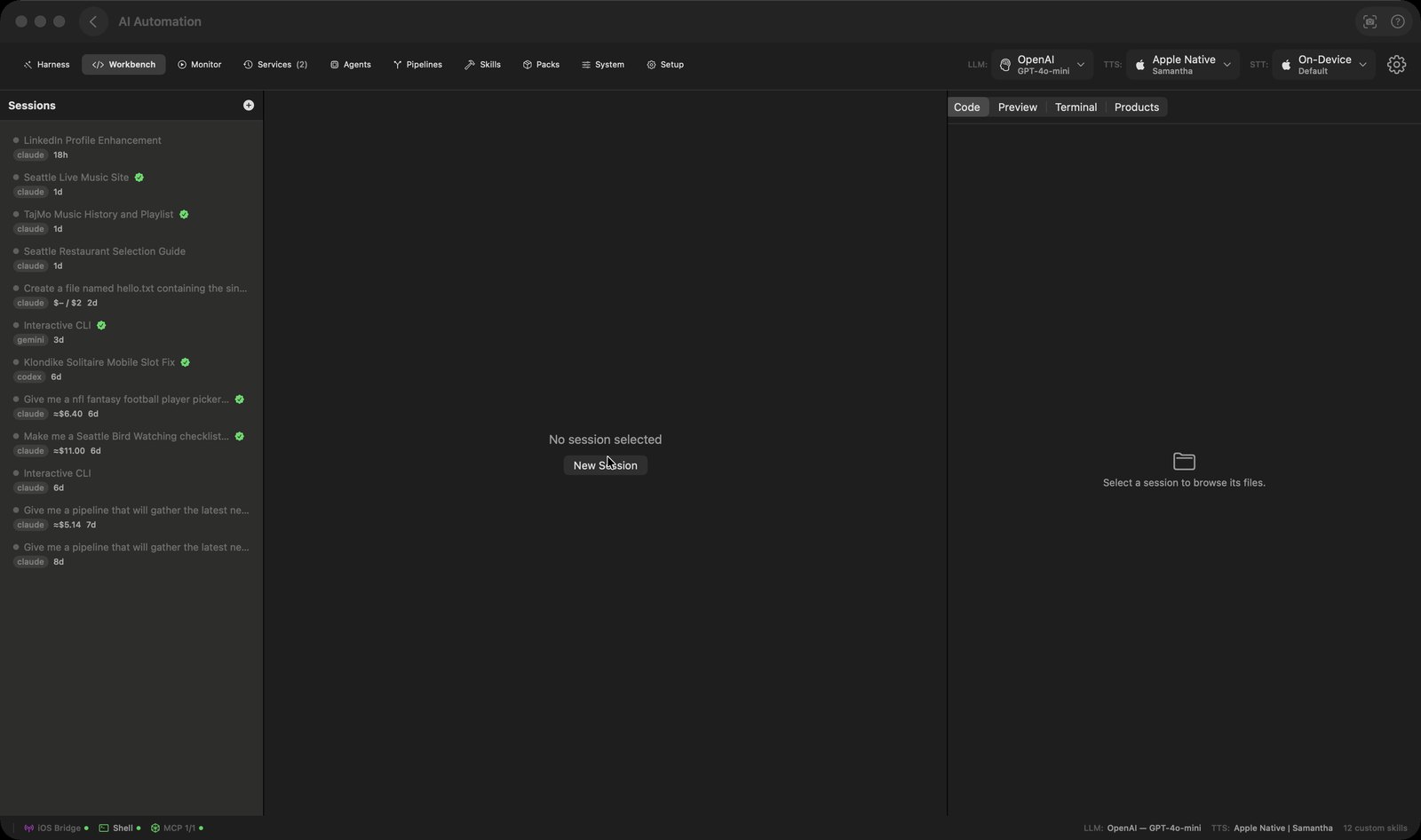
- Rounds out with a Workbench tab that runs a command-line coding agent inside the app (live permission-mode and model menus, Stop/Resume, a per-session cost readout, and a choice of the real interactive terminal or a structured chat), a Services tab that schedules pipelines, agents and web watches on eight cadences from every 5 minutes to monthly, and Agents, Monitor, Packs, System (Memory / Storage / Quality / Security) and Setup (Configuration, External APIs, Local Tools, Shell & Services, MCP, Multi-Platform) tabs.
How to try it
- On the home screen, click the AI Automation tile. It opens on the Harness tab.
- Type what you want into the box that reads 'Describe what you want to make or automate...' and press Return.
- Watch the run in the middle pane; the right-hand pane previews the result, and finished work is listed under 'Products' in the sidebar.
- To build something by hand instead, click the Pipelines tab, right-click the canvas and choose 'Add Skill...', then press the play button to save and run it.
Works with
- Hub — a 'Community Hub' sub-tab sits inside the Pipelines tab filtered to pipelines, and its 'Open in AIHarness' button hands a published item back to the Harness to branch
- mChatAIShell, the separate companion app — the Harness shows a banner when the session's artifact type requires the shell (macOS app build, Python service, full-stack deploy) and the shell isn't connected
- Command-line coding agents — the Workbench's Agent picker offers claude, codex and gemini, with availability decided by content config rather than hardcoded
- Ledger — the Workbench header has an 'Open the source Ledger this was built from' button on results built from Ledger data
AI Automation ships with mChatAI+. Native macOS app. Your own API keys, or fully on-device. Get mChatAI+