Tools
AI Slides
Describe a deck, approve the outline, then edit the slides, present them, or export a PDF.
Tools
What it does
- Two-step generation: you describe the deck and optionally paste source material, get back an outline whose rows you can retitle, reorder, delete, add to and assign a layout, and only then press "Generate Deck" so the slides are written against a skeleton you approved.
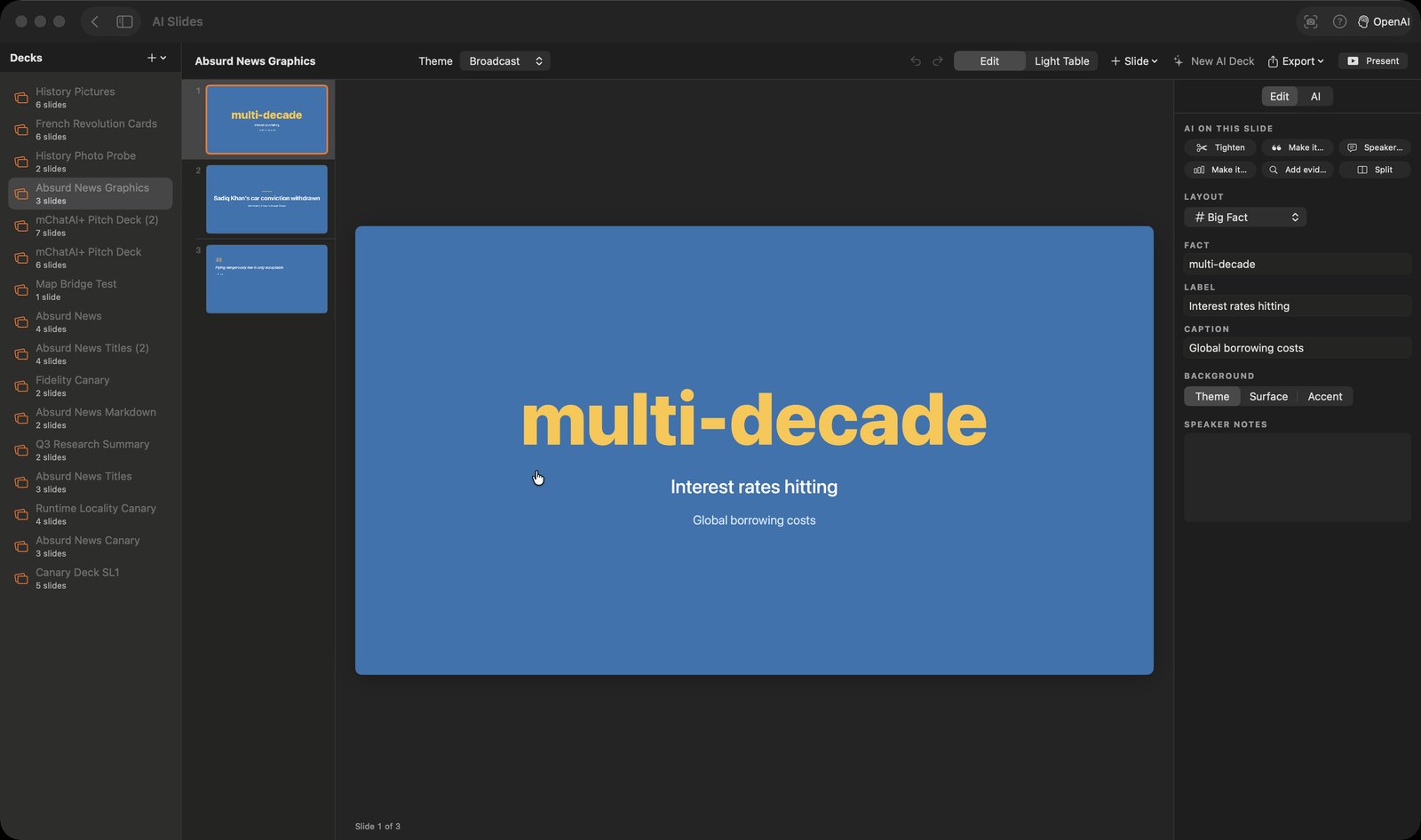
- Twelve fixed layouts — Title, Section, Bullets, Two Columns, Image Left, Image Right, Full Image, Quote, Big Fact, Chart, Table and Blank. You fill in each layout's own fields and switch layout from a picker; the renderer owns the geometry, so there is no free-form canvas to knock out of alignment.
- A chart or table slide can point at a Ledger collection by name, with a column and a kind (Auto, Bars, Line, Stat, Table). The slide reads live rows out of the Ledger record store when it renders and when it exports.
- The right column toggles between "Edit" — per-slide AI buttons, layout, image (choose a file or generate one), Ledger data, background and speaker notes — and "AI", a deck agent you instruct in plain English. The service validates every action the model proposes against the live deck and reports what actually changed, or says "Couldn't apply".
- "Present" opens a full-screen audience window plus a separate presenter window showing the next slide, the speaker notes at an adjustable size and an elapsed timer, driven by arrows, space, B to blank and Esc to end.
- Export writes a vector PDF (one page per slide, rendered through the same view the editor draws), PNG images, or Markdown. Slides marked "Skip in show" are excluded, and a failed write throws a real message instead of reporting success.
How to try it
- Open the "AI Slides" tile from the "Tools" band on the home screen.
- Press "Generate with AI", describe the deck, paste anything useful under "Source material", set the slide count and theme, then press "Draft Outline".
- Fix the slide titles, layouts and order on the outline step, then press "Generate Deck".
- Use the right column's "AI" tab to change the deck in plain English, then press "Present", or open the "Export" menu and pick "PDF…".
Works with
- Ledger — chart and table slides read live rows from a named Ledger collection
- Vault — saving a deck registers it as an end product, and slide titles are written into platform memory
- Image generation, routed by the applet's own provider picker (Google and mChatAI Cloud map straight through; every other choice falls back to OpenAI)
- mchatai-source — the themes and the per-slide AI button wording load from content files, not from the binary
Drive it from an agent
These commands are callable by Claude Code, Codex, or any agent talking to mChatAI+ through the portal:
aislides.compose
aislides.place
aislides.outline
aislides.edit
aislides.listDecks
aislides.getDeck
aislides.listThemes
aislides.listLayouts
aislides.exportPdf
aislides.addAsset
aislides.renderCards
AI Slides ships with mChatAI+. Native macOS app. Your own API keys, or fully on-device. Get mChatAI+