Everyday
Hub
Browse and install what other people built with the app: mini-apps, games, prompts, map tours.
Everyday · On the home screen by default
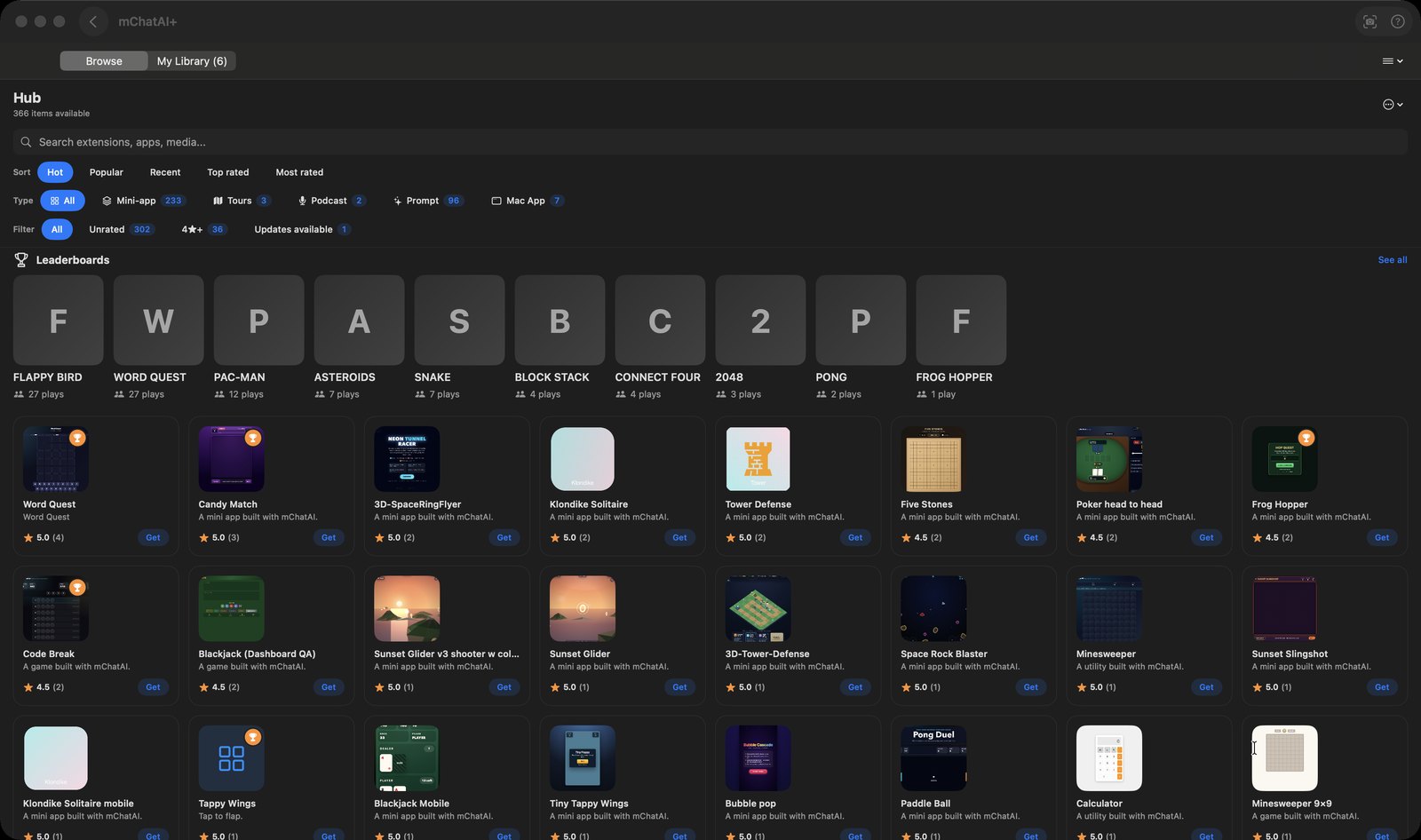
What it does
- Splits into two tabs: 'Browse', a catalog fetched live from the server, and 'My Library', a grid of what you've installed. The Library tab carries the count in its own label and puts an UPDATE badge on anything the catalog has a newer version of.
- Filters the catalog several ways at once — Sort (Hot, Popular, Recent, Top rated, Most rated), Type (All, Mini-app, Game, Tours, Podcast, Prompt, Mac App, Web), a Filter row (All, Unrated, 4★+, Updates available) and, when Type is Prompt, an extra Applet row (Photo, Video, Music, Speech) — plus a 'Search extensions, apps, media...' box. 'Hot' uses a weighted score that pulls low-volume items back toward the average, so a single five-star rating can't shoot something to the top.
- Opens a detail sheet per item with a description, tags, requirements, a tappable five-star rating row, and one main action: 'Get' to install, 'Play' to try it without installing, 'Open' once installed, or 'Update' when a newer version exists.
- Handles different kinds of item differently, which is the point: a Mac app is downloaded ('Download App' or 'Download Source') and extracted into your user Applications folder; a podcast gets a single 'Open in Podcasts' button instead of a web player; a map tour is added to MapGuide's tours on install; and a prompt gets 'Copy prompt' plus a button that opens it in the applet it was written for.
- Only shows items that have passed review — the catalog query filters to entries marked security-approved and moderation-clean — and offers 'Report this item' and 'Block author', after which that author's items are filtered out of your catalog, search and feed.
- Opens an installed mini-app or game in its own window from My Library, and can hand an item to the AI Harness with 'Open in AIHarness' so you can branch and modify it rather than just use it.
How to try it
- On the home screen, click the Hub tile.
- On the Browse tab, pick a Type pill (Mini-app, Game, Tours, Prompt, …) or type into the 'Search extensions, apps, media...' box.
- Click an item to open its detail sheet, then click 'Get'.
- Switch to the 'My Library' tab and click the item to open it in its own window.
Works with
- AI Automation — the same Hub view is embedded in the Pipelines tab filtered to pipelines, and 'Open in AIHarness' hands a published item to the Harness to branch
- Podcasts — a podcast item opens in the Podcast applet rather than a web player
- MapGuide — an installed tour is added to MapGuide's tour store
- DreamSnap and AI Audio — prompt items are sub-filtered by applet (Photo, Video, Music, Speech) and carry an action that opens them where they were written for
Drive it from an agent
These commands are callable by Claude Code, Codex, or any agent talking to mChatAI+ through the portal:
hub.getState
hub.search
hub.getApp
Hub ships with mChatAI+. Native macOS app. Your own API keys, or fully on-device. Get mChatAI+