Tools
AI Calendar
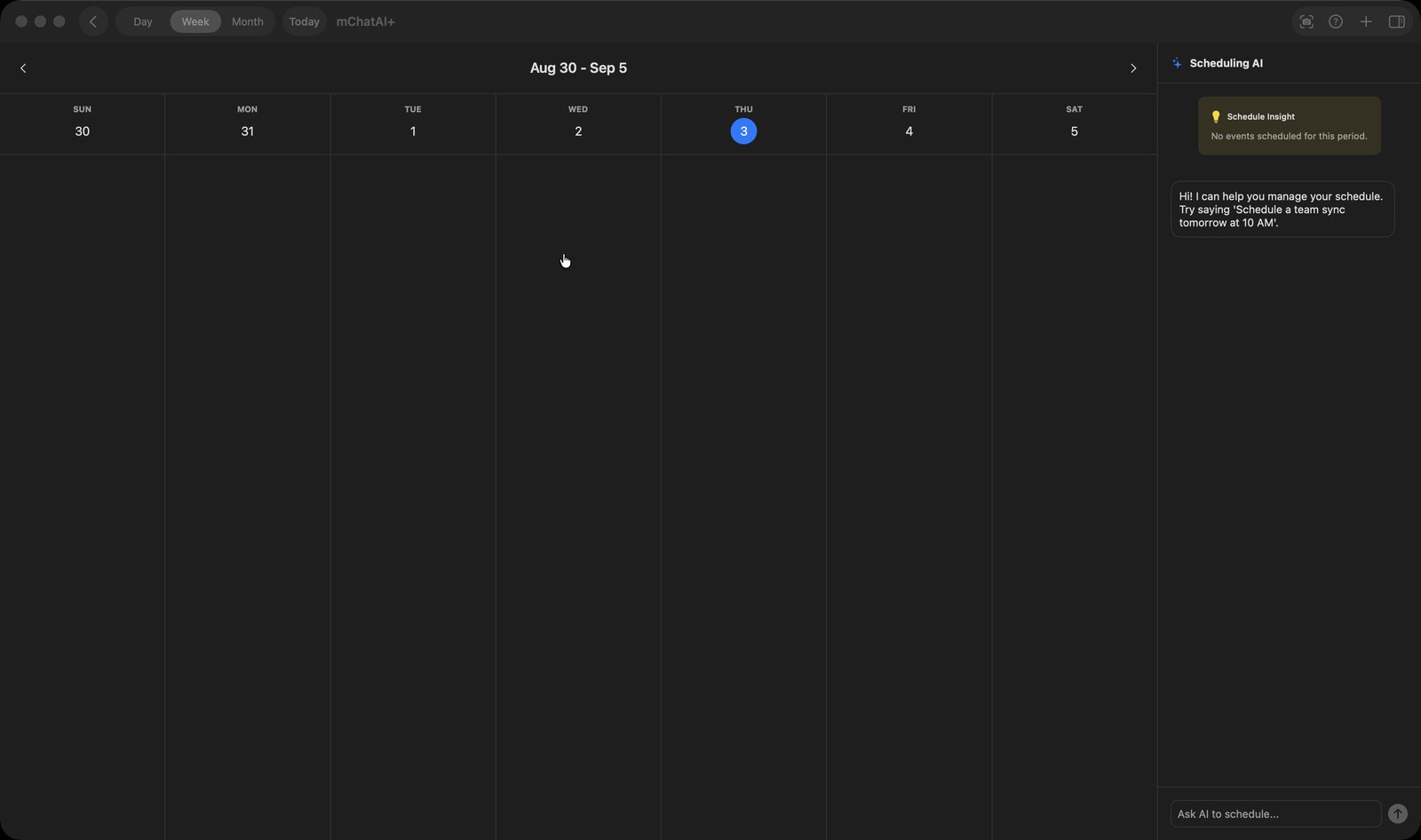
Your Apple Calendar in a day or week view, with a sidebar where you type an event in plain English.
Tools · Asks for Calendar permission the first time
What it does
- Shows your Apple Calendar events two ways: Day lists that day's events as cards, Week draws seven columns. Events are re-fetched through EventKit whenever you switch view or step forward and back.
- Type a request into the "Scheduling AI" sidebar and a model returns a title, start, end and notes, which are saved as a new event on your default Apple Calendar. Your existing events are included in the prompt, so asking for a free slot tells the model to avoid overlaps.
- A "Schedule Insight" panel asks a model to read the loaded events, plus any overlapping pairs the app worked out, and reply with two or three sentences of suggestions.
- The "+" toolbar button opens a "New Event" sheet: Event Title, an "All Day" toggle, Start and End date pickers, and optional notes.
- Clicking an event card opens a detail sheet with the date, time, duration in minutes, calendar name, location, notes, and a "Join Zoom" / "Join Google Meet" / "Join Teams" / "Join Webex" link pulled out of the event's URL, location or notes.
How to try it
- On the home screen, expand the "More Apps" band and click the "AI Calendar" tile — it carries a "SETUP" badge until you grant calendar access.
- Switch between Day and Week with the segmented picker in the toolbar; use "Today" and the arrows either side of the date to move around.
- In the "Scheduling AI" sidebar, type into the "Ask AI to schedule..." field and press Return.
- Click "+" in the toolbar to add an event by hand, or click any event card to open its detail sheet.
Works with
- Apple Calendar through EventKit — the only source that returns events today
- mChatAI's platform memory — every event added here is also written to the shared memory store under a "calendar" namespace
AI Calendar ships with mChatAI+. Native macOS app. Your own API keys, or fully on-device. Get mChatAI+