Reading & research
AI Reader
Search Gutenberg, Open Library and Wikipedia, then read public-domain books inside the app.
Reading & research
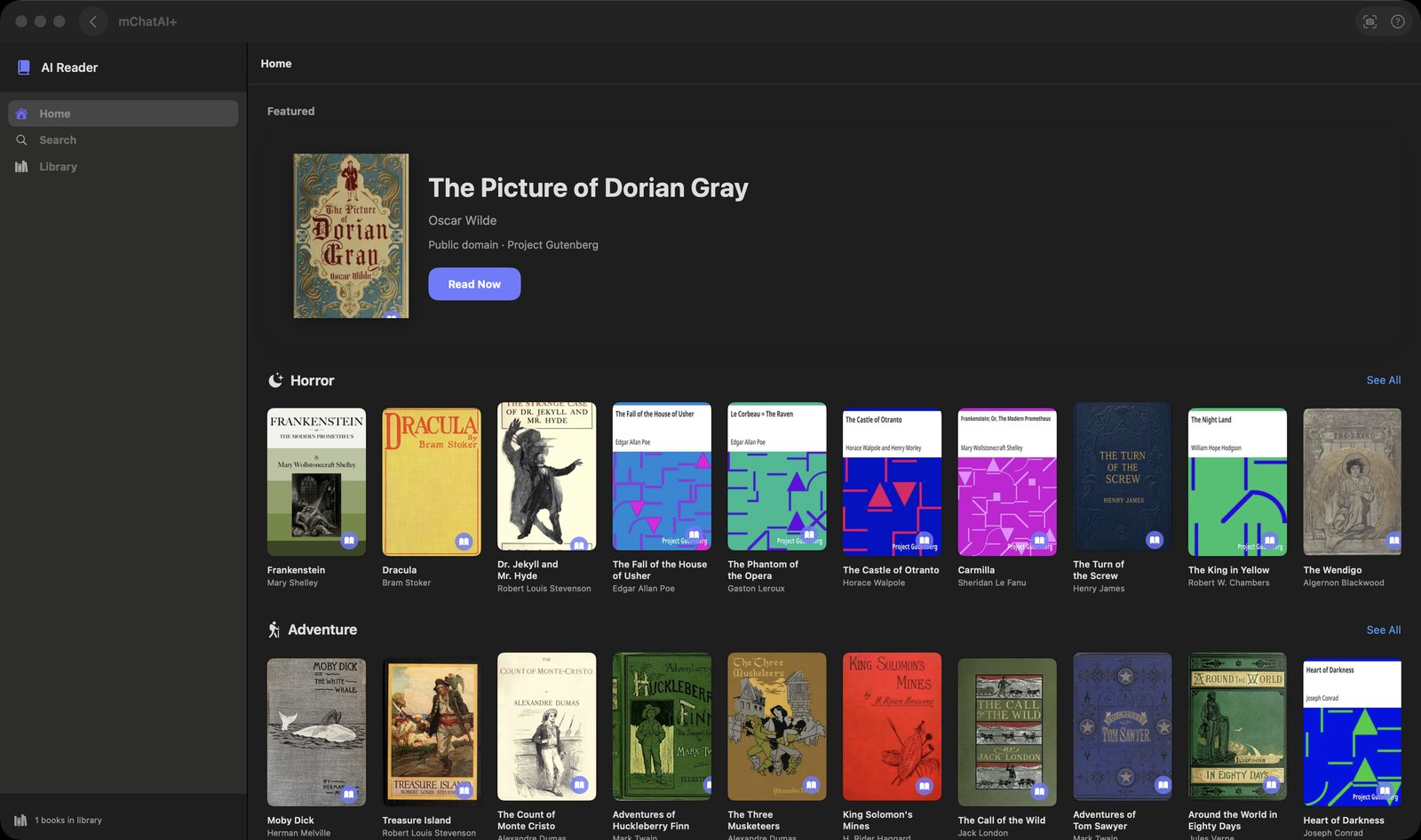
What it does
- The Home screen opens with no network call: 90 hand-picked Project Gutenberg titles across ten genre shelves — Horror, Adventure, Mystery, Sci-Fi, Romance, Fantasy, Philosophy, Humor, Children, Classics — plus a "Featured" book, and an "Open Library" shelf that fills in afterwards
- Search queries three catalogues in parallel — Gutendex (Project Gutenberg), Open Library and Wikipedia — with a "Sources:" row of toggles to switch each one off and re-run the search
- Gutenberg books open as clean reading text: everything before the
*** START OFline and after*** END OFis dropped, and the old ~70-column hard wrapping is rewritten into real paragraphs before you see it - "Add to Library" downloads the book's text and saves it, so it opens later without a connection; removing the book deletes that cached copy
- An "AI Actions" menu in the reader's toolbar offers "Summarize with AI", "Translate to Spanish", "Translate to French" and "Clean Up Text"
- A focus mode (tooltip: "Focus Mode") enlarges the type and narrows the column
How to try it
- Open AI Reader and click "Search" in the left sidebar.
- Type a title or author into the search box and press Return; use the "Sources:" toggles to narrow it to one catalogue.
- Click a result to open the reader, then click "AI Actions" in the reader's toolbar and choose "Summarize with AI".
- Click the bookmark icon in the reader's toolbar to add the book to "Library" for offline reading.
Works with
- Audio Books — LibriVox audiobooks were split into their own applet; a code comment marks AI Reader as text-only now, and its offline download explicitly skips LibriVox items
- For You — closing a document emits a cross-app interest signal via
UsageThumbprintHelpers.emitReaderRead
AI Reader ships with mChatAI+. Native macOS app. Your own API keys, or fully on-device. Get mChatAI+