Audio
Audio Script Creator
Turn a story into a multi-voice audiobook: AI casts the characters, you direct, it renders one file.
Audio
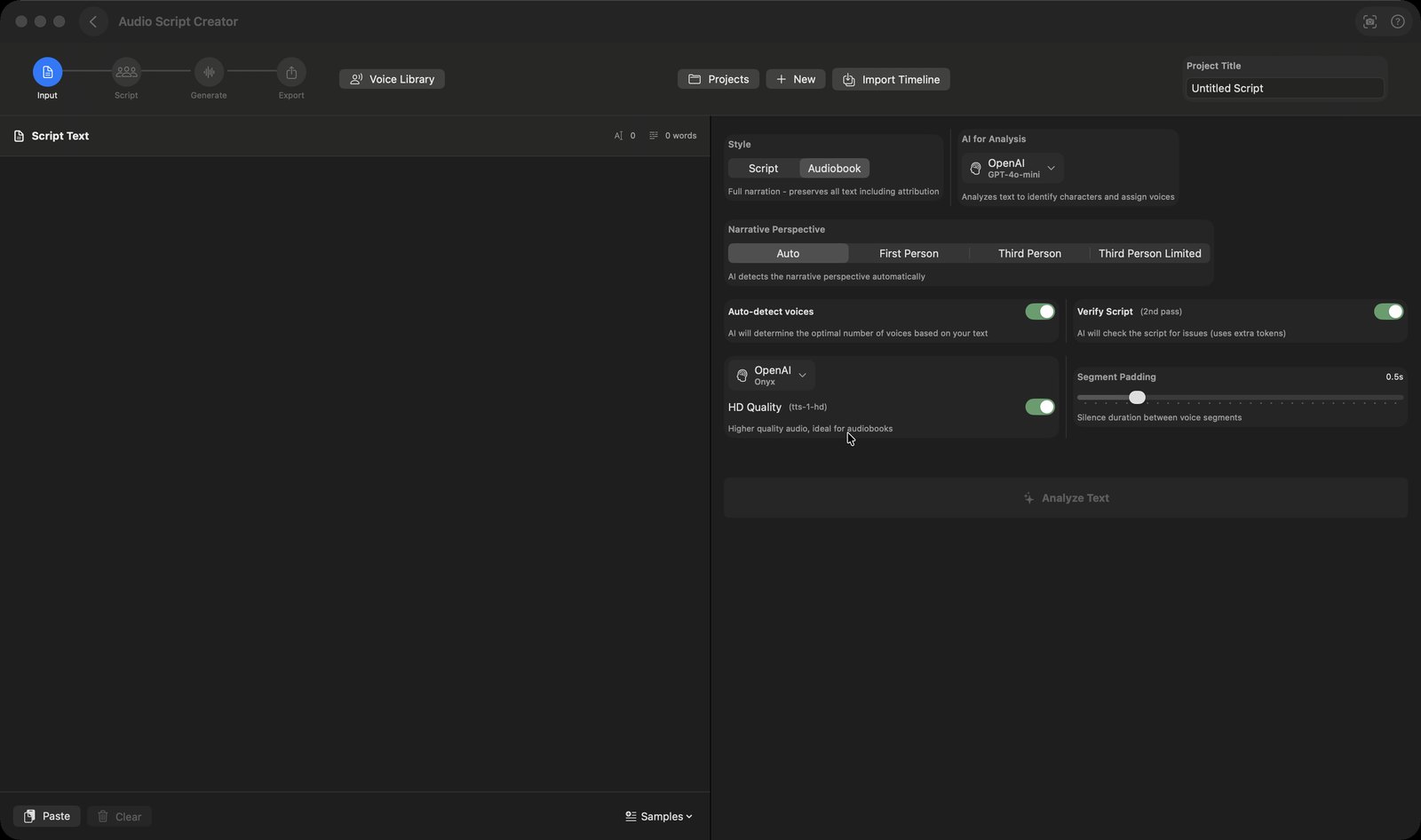
What it does
- A four-step workflow across the top — Input, Script, Generate, Export — that you move through and can come back to
- On Input you paste or sample text, pick a Style, pick which AI does the analysis, set narrative perspective and protagonist details, and either let it auto-detect how many voices are needed or force a count; an optional 'Verify Script' second pass re-checks the analysis
- 'Analyze Text' splits the text into segments, names the character speaking each one and builds a Voice Cast; a Debug Logs viewer shows what the analysis did, with 'Copy All'
- On the Script step you edit segment by segment — Edit, Insert After, Regenerate with Context, Split, Merge with Next, Delete — and change voice assignments, with 'Preview Voices' to audition and a Voice Library that remembers character-to-voice mappings across projects
- Generation renders each segment through OpenAI, Google, ElevenLabs or Apple Native voices, shows cost and 'x / y segments' progress, and can be paused; reopening a half-finished project offers 'Resume Generation' instead of 'Generate Audio', and 'Rebuild Mix' re-combines what is already rendered with new volume and spacing settings without paying to regenerate it
- An audio-tracks lane runs alongside the speech: 'Add Audio File' for your own audio, 'Insert Silence After', and sound effects generated from a written description through ElevenLabs (with a duration slider and a Creative-to-Literal control). Each clip gets its own volume and timeline start, and a Sound Library keeps generated effects for free reuse
- Export shows a preview player with a scrubber plus 'Save As...' (defaulting to an .m4a), 'Show in Finder', 'Share' and 'Publish to Hub'
How to try it
- On the mChatAI+ home screen, open the 'Audio' band and click the 'Audio Script Creator' card.
- On the Input step, open the 'Samples' menu and pick 'Dialogue Sample', choose a Style, then click 'Analyze Text'.
- On the Script step, check the Voice Cast assignments and click 'Continue to Generation', then 'Generate Audio'.
- When the segments finish, click 'Continue to Export' and use 'Save As...' to keep the finished M4A.
Works with
- Vault — 'Share' registers the finished audio as a Vault product, uploads it to mchatai.com and copies a private link to the clipboard
- Community Hub — 'Publish to Hub' lists the finished audio publicly, pre-tagged as a podcast
- AI Web — a research scan that produces a podcast can hand its project to this applet, which opens straight onto it
Audio Script Creator ships with mChatAI+. Native macOS app. Your own API keys, or fully on-device. Get mChatAI+