Tools
DreamSnap
Make photos and video from a prompt, or edit your own with painted masks and local sliders.
Tools
What it does
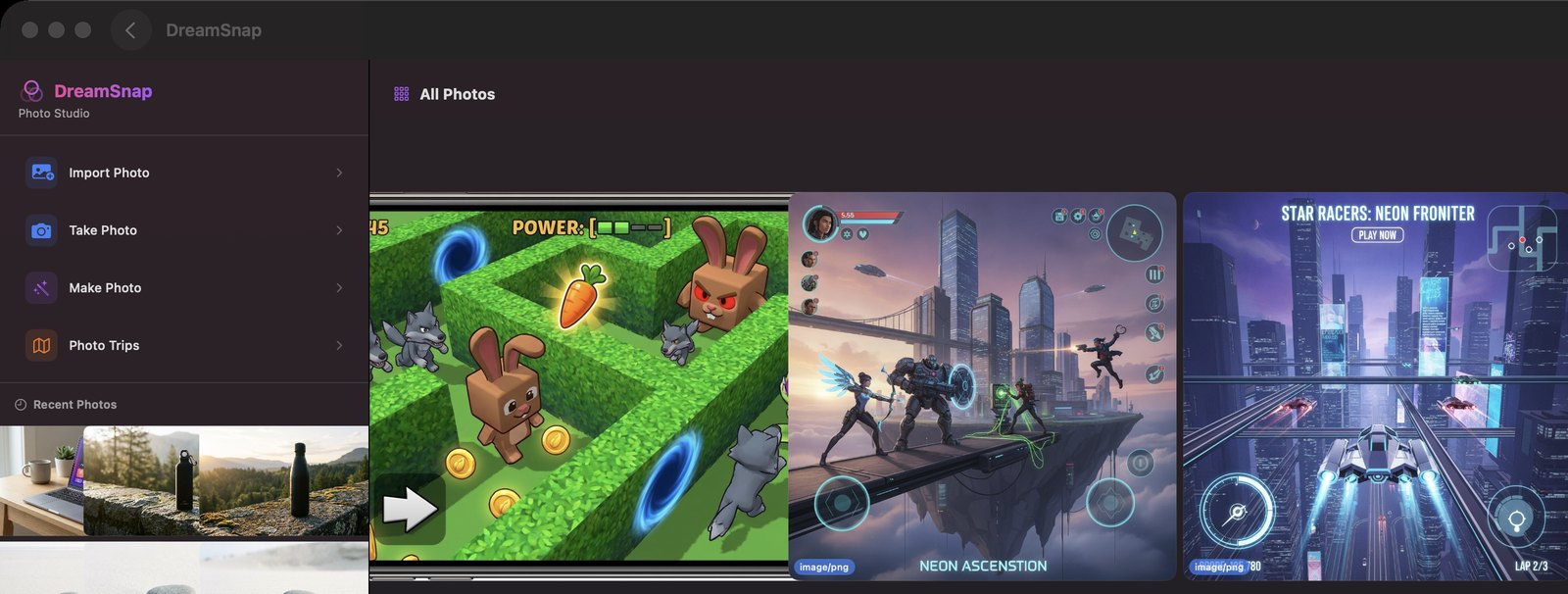
- Two tabs, Photos and Videos. Each shows a grid of everything you have made and a sidebar of actions — Import Photo, Take Photo, Make Photo, Photo Trips on one; Import Video, Take Video, Make Video on the other.
- "Make Photo" generates an image from a text prompt via Gemini, OpenAI or Stability, with style chips, a "Browse examples" prompt gallery and an optional attached reference photo. If your chosen provider has no key configured, it quietly tries the others in order and uses the first one that does.
- The photo editor has six modes: Style Transfer (Van Gogh, Anime, Cyberpunk, Watercolor, Retro, Neon, Sketch or your own prompt), Background, Remove Object, Replace Object, Crop and Auto Adjust. Remove and Replace Object open a mask canvas so you paint over the exact thing you mean.
- Auto Adjust is entirely local — eight sliders (Brightness, Contrast, Saturation, Warmth, Sharpness, Highlights, Shadows, Vignette) plus a one-click "Auto Enhance" that runs a Core Image and Vision pass: horizon straightening, exposure, white balance, highlight recovery, noise reduction and sharpening. No AI call, no cost.
- "Make Video" generates video from a prompt, or animates a still you attach, with a camera-motion style, a duration and an aspect ratio (9:16, 1:1, 16:9), using Google's Veo models — Veo 2 or Veo 3 when you are signed in, or your own Gemini key otherwise. The video editor splits clips at the playhead, deletes clips, applies filters, adjusts brightness/contrast/saturation/warmth/sharpness, and changes playback speed.
- "Photo Trips" scans the geotagged photos in your Photos library and clusters them into past outings, each listing its stops and photo counts. It needs 3 or more photos within 600m of each other over 10 or more minutes to call something an outing, and tells you plainly when a scan finds nothing and why.
- "Share" on an edited photo runs a server-side image safety check before the publish sheet will even open — any failure, including a network error, blocks it. What gets published is the prompt plus the image, to a shared prompt gallery other users browse; publishes from a non-admin account land pending review.
How to try it
- Open DreamSnap and click "Make Photo" in the sidebar.
- Type a description, pick a style chip, click the round arrow button to generate, then click "Save".
- Back on the Photos tab click "Import Photo", choose "Remove Object" in the editor, paint over what you want gone, and click "Generate".
- Click "Photo Trips" and click "Allow Access to Photos" to scan your library for past outings.
Works with
- The iOS mChatAI app — DreamSnap exists there and the projects sync through the same CloudKit store
- The shared prompt gallery, through a publish sheet with an image-moderation preflight
- Apple's Photos library, for the Photo Trips scan
- mChatAI Cloud, which changes which Veo models are offered when you are signed in
- The AI Wizard / harness — images it generates are written into the DreamSnap library as projects, so they appear in the same gallery, and it can deep-link straight to one
Drive it from an agent
These commands are callable by Claude Code, Codex, or any agent talking to mChatAI+ through the portal:
dreamsnap.getState
dreamsnap.listProjects
dreamsnap.listFeed
dreamsnap.generatePhoto
DreamSnap ships with mChatAI+. Native macOS app. Your own API keys, or fully on-device. Get mChatAI+