In the lab · Built and working, but only in the direct download of mChatAI+, behind the Show Experimental switch on the home screen.
Icon Maker
A layered icon editor that exports a real .icns, an iOS app icon set or a favicon.
In the lab · Experimental, in the direct download only — switch on Show Experimental on the home screen to see it
What it does
- Layer-based canvas: stack multiple symbol, text and texture layers over a background and an imported image, each with its own visibility, opacity, blend mode, position, scale and rotation, reorderable from a layers panel
- Six tools on a left rail with ⌘1–⌘6 shortcuts — AI, Symbol, Text, Shape, Image, Texture
- The Symbol tool browses the system's full SF Symbols list (read from macOS's own CoreGlyphs catalogue) and a bundled Material Icons set of 4,163 icons across 17 categories, with search and a colour picker
- The AI tool has two modes: 'Composer (Local)' turns a plain-English description into an icon through an icon-maker service installed on your own machine, and pre-fills the editor's controls from what it parsed so you can keep refining by hand; 'Image Gen' generates one through OpenAI or Google
- The Shape tool sets the platform, corner radius, primary and secondary colour and an optional gradient with an angle; the Texture tool offers eight procedural presets — Noise, Fine Grain, Dots, Grid, Stripes, H Stripes, Crosshatch and Waves
- Exports four ways: a macOS .icns built with the system sips and iconutil tools at all ten Retina sizes, an iOS AppIcon.appiconset with a Contents.json, 16px and 32px favicons, and a plain PNG
- The canvas previews the icon at 128, 64, 32 and 16 px under a 'Legibility Check' note, so you can see what survives at small sizes
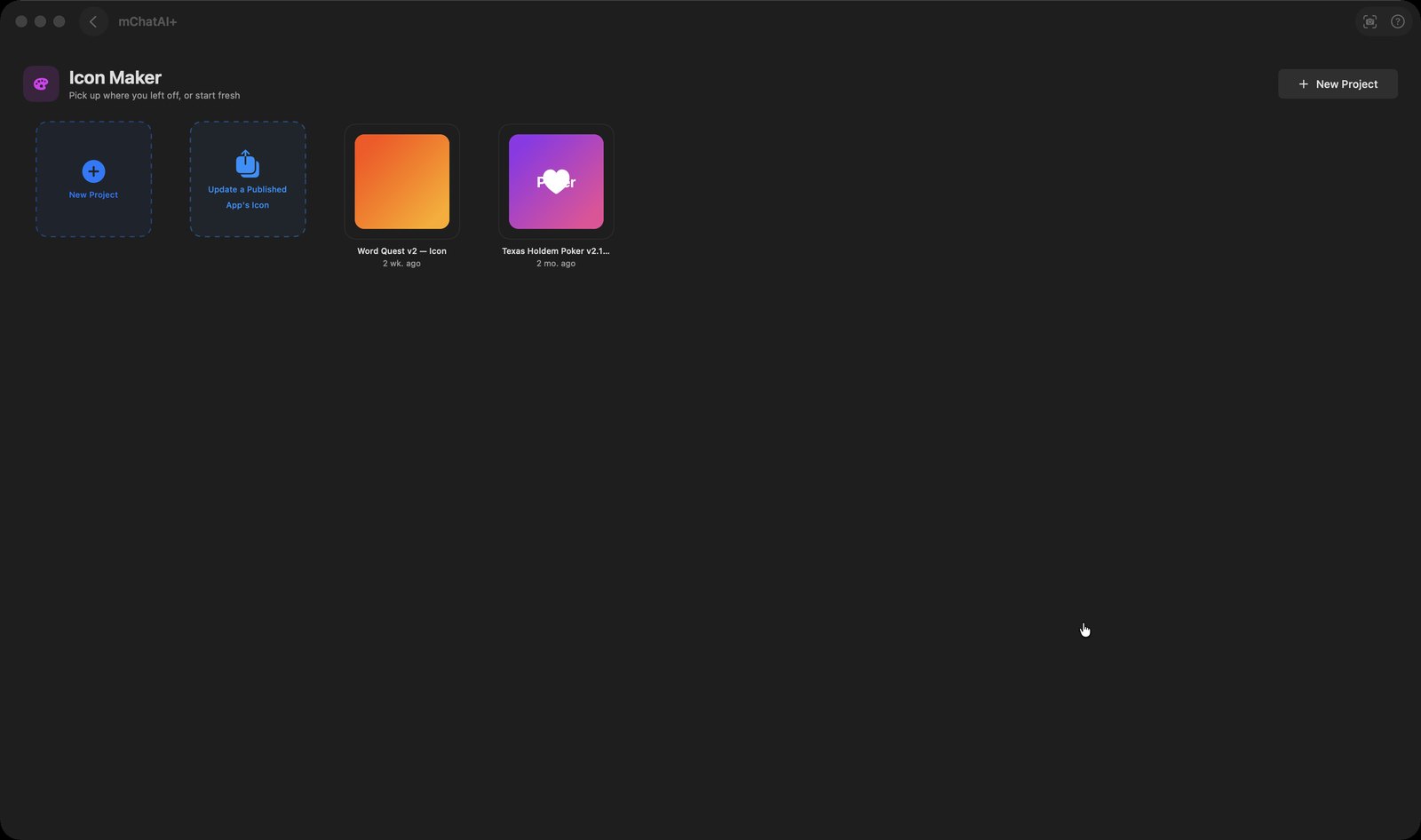
- 'Update a Published App's Icon' lists apps you have published; once a project is bound to one, the export bar swaps its buttons for a 'Ship to Hub' button that uploads the new icon and bumps its revision, and refuses if you are signed in as a different publisher
- Projects are saved as JSON files on disk, auto-saved as you work, and shown as a thumbnail grid you can reopen, duplicate or delete
How to try it
- Open the Icon Maker tile from the home screen — it is not marked experimental, so it is visible by default.
- Press 'New Project', give it a name, choose a project type such as 'macOS App Icon' or 'Full Set (iOS + macOS + Web)', and press 'Create'.
- Press ⌘2 for the Symbol tool, search for a symbol and pick a colour; press ⌘4 for the Shape tool to set the corner radius and turn on Gradient.
- Or press ⌘1 for the AI tool, pick 'Composer (Local)', type a description in the box and press Return (or the wand button beside it).
- At the bottom of the canvas press 'macOS', 'iOS', 'Favicon' or 'PNG' to export — which buttons appear depends on the project type you chose.
Works with
- mChatAIShell (installs and runs the local 'icon-maker' service that Composer mode calls; the applet asks MicroserviceInstallCoordinator to install it on first use)
- The published-apps store (the Ship to Hub flow updates a published app's icon and revision through EndProductPublishService)
- Image Studio (both read the same ImageGenerationProvider enum, defined in ImageStudio/ImageProject.swift, behind the same cloud-provider feature flag)
Icon Maker ships with mChatAI+. Native macOS app. Your own API keys, or fully on-device. Get mChatAI+